Blog / Oracle Application Blog
White Paper on Advanced Approval using Approval Management Engine – AME
“If you want something new, you have to stop doing something old”- as Peter F. Drucker says many organizations are stop doing old and keep innovating new technologies to stay in the competitive market. Thanks to customer expectations, Organizations are updating the existing products with new technology to delight the customer with enhanced features.
Oracle has also steering to achieve more customer satisfaction by keep updating their products. Recently Oracle E-Business suite updated from their R11i to R12.1.3. Oracle has added many new features in R12.1.3 version which spanning across different modules.
In this white paper, we would like to discuss about enhanced “Advanced Approval Support” features in iProcurement Module using Oracle Approval Management Engine (AME). The enhanced Advanced Approval Support features are:
-
Position Hierarchy Based Approvals
-
Position Hierarchy can be used for Purchase Requisition approval using Oracle Approval Management (AME)
-
Parallel Approvals
-
Simultaneous approve by multiple approvers for Purchase Requisition to speed up the Requisition approval
-
Supports FYI Notifications
-
For Your information (FYI) notification are enabled to notify the action taken on the purchasing decision to certain individuals where the decision need to be communicated.
-
Graphical display of Approval Chain
-
A graphical view of approval chain and requisition status display provided to view during purchase requisition creation in iProcurement.
The above enhanced features, Setup required to use the features with some examples are detailed in this white paper.
Introduction
Thanks to the global technology advancement, all organizations are updating or implementing new technologies to grow faster and to be successful in the current competitive world. Oracle Corporation has released an updated version of Oracle E-Business suite (EBS) 11i to R12 to sustain in the fast growing technology world. There are number of new features introduced and some of the existing features are enhanced to give full benefit to the customer.
However, we are limiting this document to discuss only on “Advanced Approval Support” features in iProcurement R12.1.3. Oracle Corporation has released next version of Oracle EBS R12.2. But no further new or enhanced features are added with respect to “Advanced Approval support”.
The new / enhanced approval support such as “Position Hierarchy Based Approvals, Parallel Approvals, Supports FYI Notifications and Graphical display of Approval Chain” will enhance the Customer approval process in Purchase Requisition Process. Features like Parallel Approval will speed up the buying process which enables the buyer to procure items on time.
This white paper discusses the details about all new and enhanced approval support, setup required to enable the features with examples.
Position Hierarchy Based Approvals for Purchase Requisition
Organizations are used to have Position Based approval to overcome the personnel changes. This type of approval hierarchy ensures the organization work seamlessly even if the approver moves out of the organization. This new feature allows the organization to use Position hierarchy for Purchase requisition approval without any change. Approval Management engine enhanced to support Position based Hierarchy approval for Purchase requisitions transaction type.
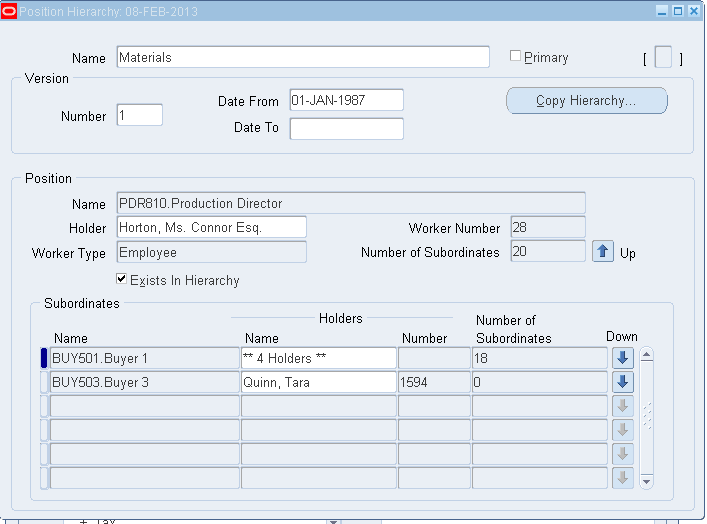
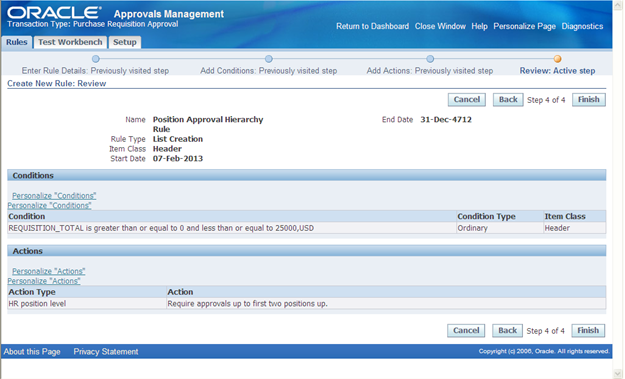
There are 2 new action types such as “HR Position Level” and “HR Position” is introduced to support position hierarchy approvals. HR Position level will be used to get approval based on position level (Ex: Require approvals up to first two positions up) and HR position will be used to approval from a particular HR position (Ex: Requires approval up to HR Positions: MM400.Materials Manager)
Setup required for Position Hierarchy Based Approvals for Purchase Requisition
-
Define Job

-
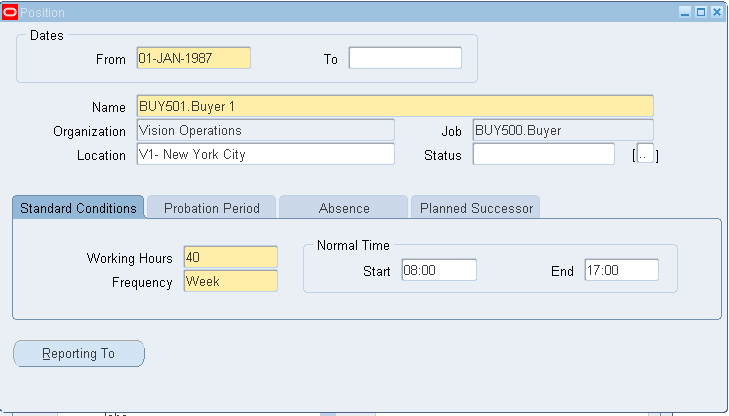
Define Position.
-
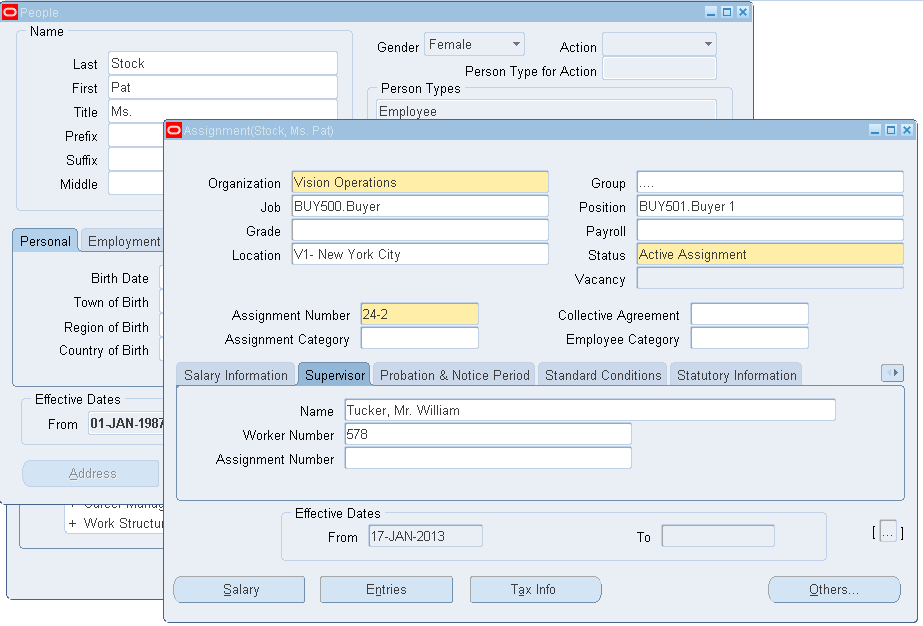
Define Employee and assign Job and Position to employee
-
Define Position Hierarchy
-
Define Rule in Approval Management engine using “HR Position Level” action type for Purchase Requisition transaction type
-
Navigate to “Approval Management Engine Business Analyst” Responsibility and select “Purchase Requisition Approval” as transaction type and click on Setup button.
-
Navigate to “Rule” button and click on “Create” to create a Rule based on Position Hierarchy.
-
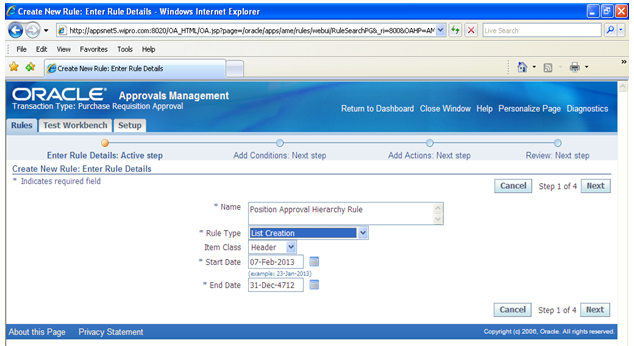
Enter Name, Rule type as”List Creation” and Start date during Step1.

-
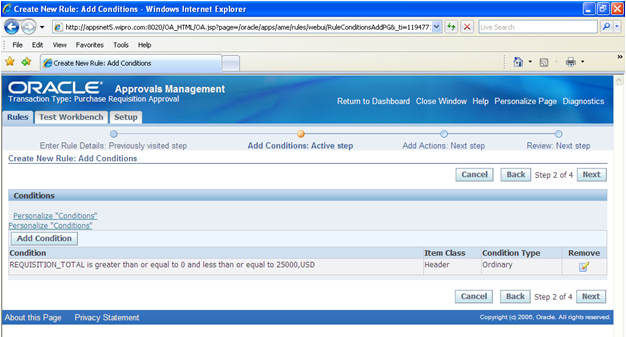
Add condition In Step2
-
Add “Action Type” “HR Position Level and select Required action in Step3

-
Review all the details and click finish button to create Rule.
-
You will get confirmation message once the rule has been created.

-
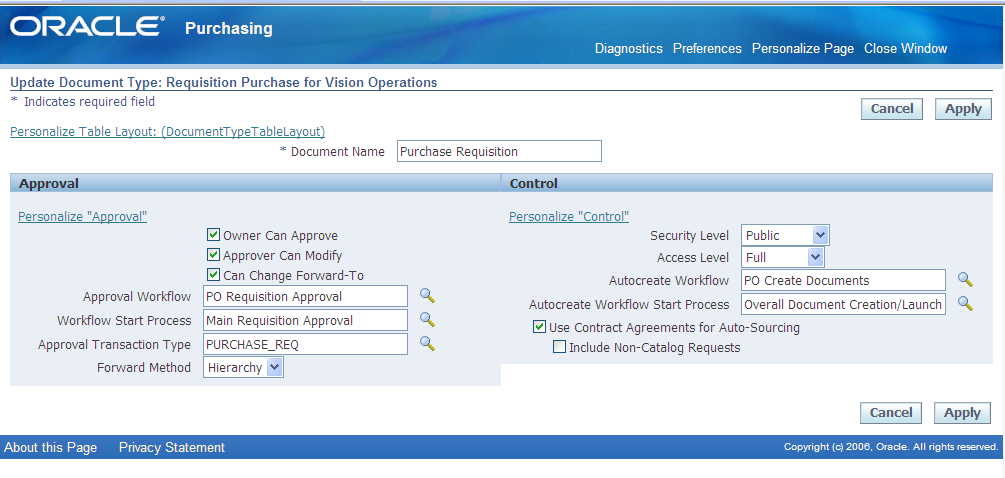
Select “PURCHASE_REQ” as Approval Transaction Type for “Purchase Requisition” Document Type
Example
-
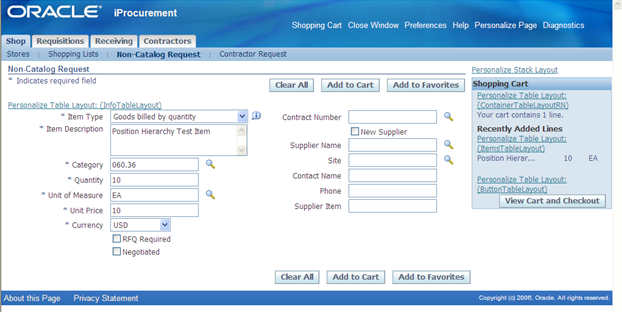
Raise a Non catalogue Purchase requisition (PR) in iProcurement for $100.
-
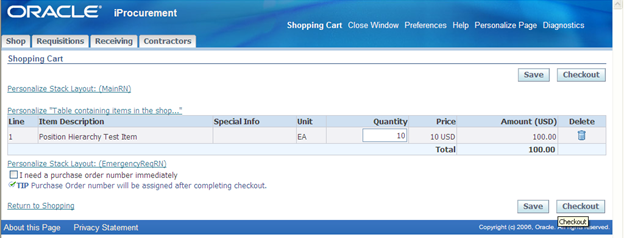
Check out from the shopping cart.

-
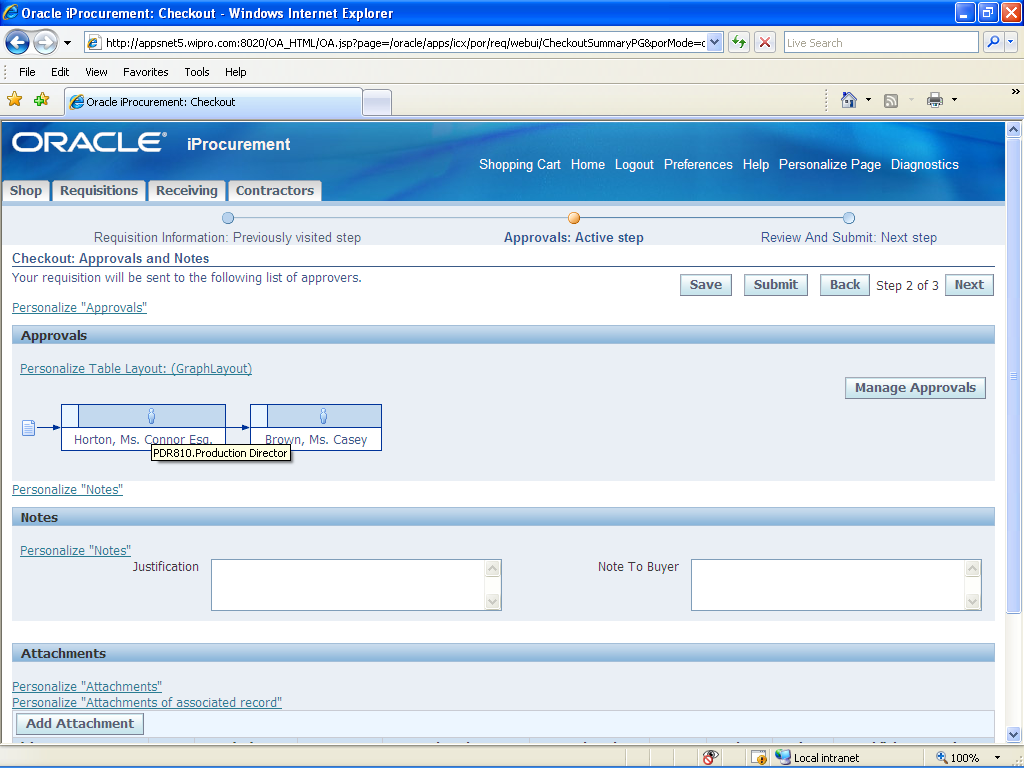
Based on the Approval Limit Approval hierarchy generated. In our case, Approval hierarchy generated using the Position Hierarchy level. Click on next to go to review page
-
Review and submit the requisition for approval.
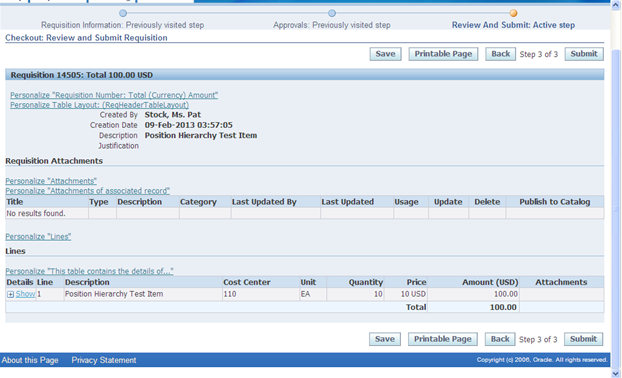
-
Requisition submitted and Click on requsition number to see the current status.

Please navigate to “Approval Management Business Analyst” responsibility to cross check and to confirm the rules used to generate approval hierarchy. Please note that I have shown these details to confirm that the rule created based on Position hierarchy are used and this is not a step to create purchase requsition from iProcurement.
-
Click on “Run Real Transaction Test “ button
-
Enter Requsition_header_id of the Purchase Requisition and click GO

-
Click on “Run Test Case(2)” button and results will be shown as below:
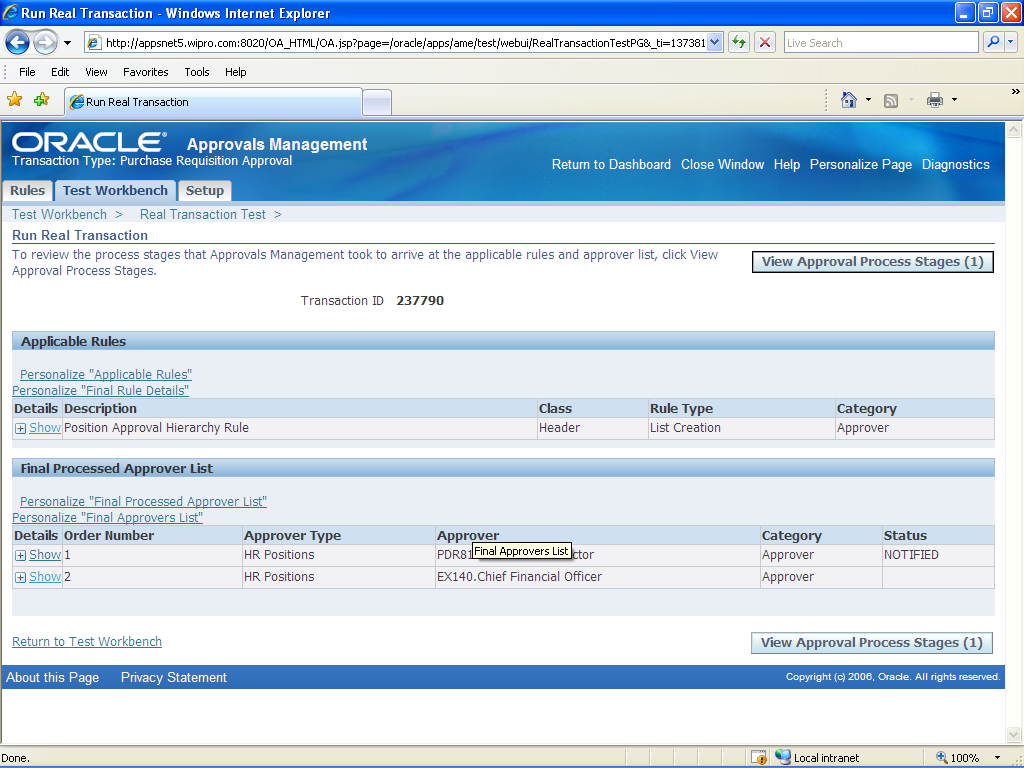
-
Login as Horton and Approve PR and Once approved, PR will go the next approver.
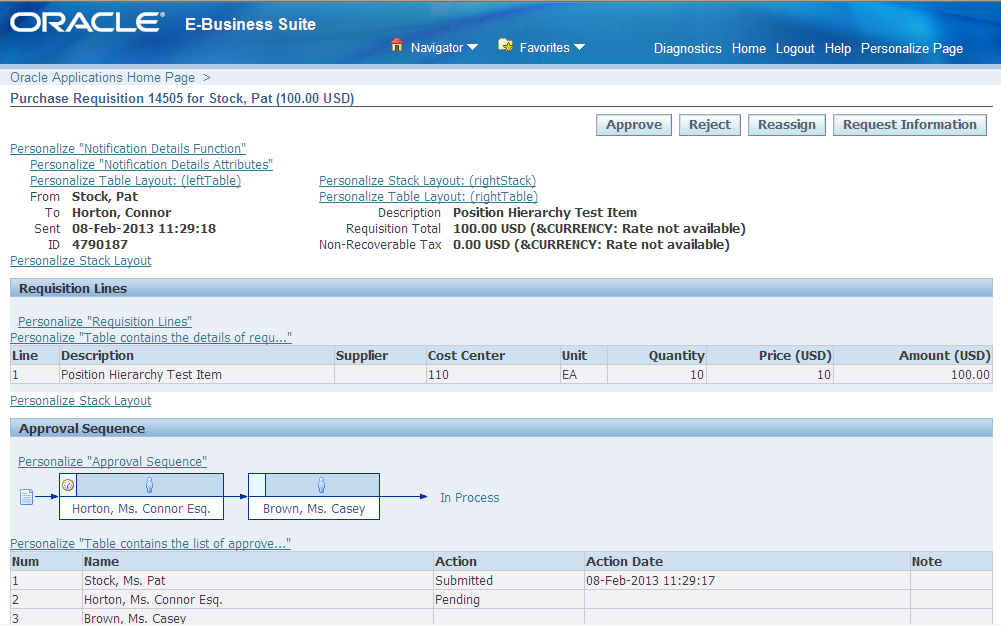
-
Login as Brown and Approve PR and Once approved, PR will get approved.
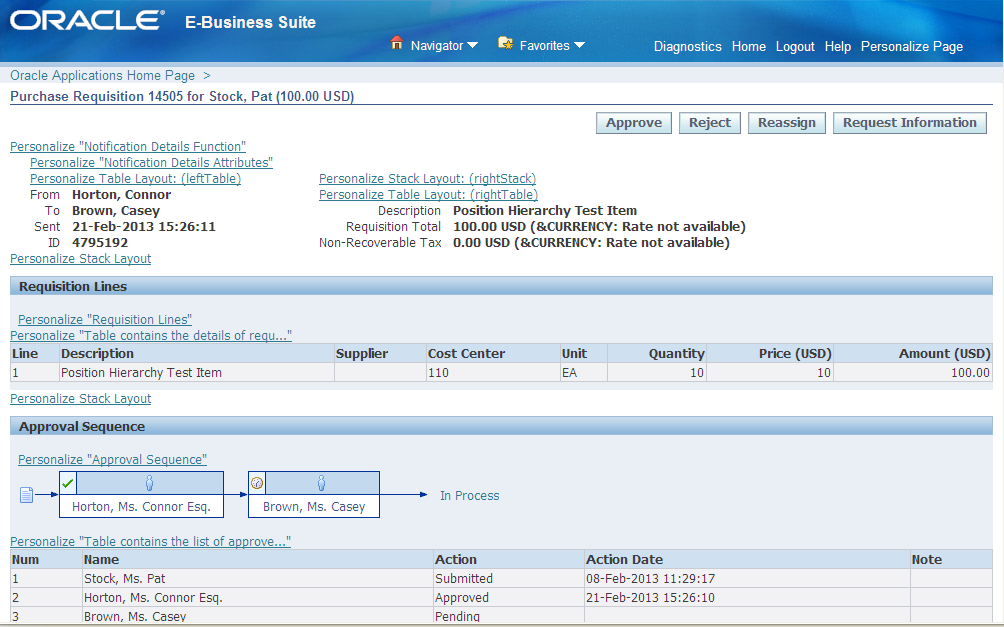
-
Login as requestor to see the PR status and you can see that PR is fully approved.

Parallel Approvals for Purchase Requisition
Oracle introduced Parallel Approval process to speed up purchase Requisition approval. Due to high volatile environment, organizations can not depend on one approval authority. The buying process delayed or stopped when the approval authority is not available to provide his approval for the requisition. To continue the buying process without any gap or delay, organizations are depending on another approval authority, who can approve the request.
Parallel approval process allows multiple approvers to approve the once purchase Requisitions simultaneously. This ensures the buying process in an organization is moving continuously.
Setup required for Parallel Approvals for Purchase Requisition
-
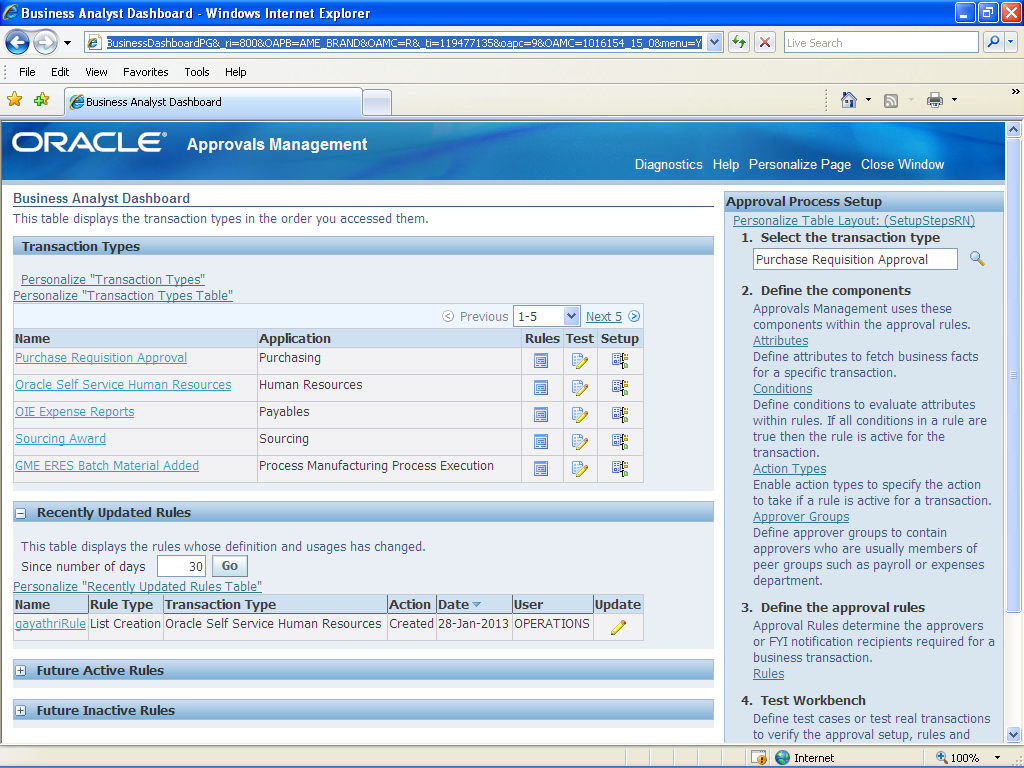
Navigate to “Approval Management Business Analyst” Responsibility and Select Purchase Requisition transaction Type. Click on “Setup” button to modify the setups
-
Navigate to “Action Type” and create new action type (if required) or use existing action types. We are using existing action type “Approval –Group chain of authority” action type.
-
Select ordering method as “Parallel” to setup Parallel approval process. (“Serial” ordering mode is normal approval Process. i.e. Approval goes from one approver to next approver in a sequence )
-
Select Voting method. Oracle provides multiple options in voting method.
-
Serial:
Serial voting is a normal voting method where approvers are notified one after other. All approvers must approve the request to get Purchase Requisition approval
-
Consensus:
All Approvers are notified in parallel. All approvers must approve the request to get Purchase Requisition approval.
-
First Responder Wins
All Approvers are notified in parallel. The first responder’s choice will be group’s response. Purchase Requisition will get approved, if the first responder approves. Purchase Requisition will get rejected, if the first responder rejects.
Note: “First Responder Wins” option used here to explain the functionality

-
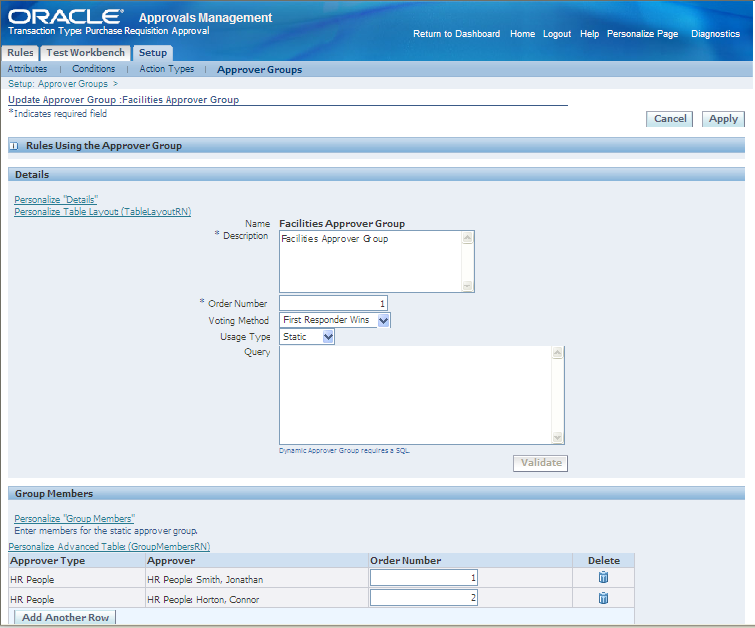
Create approver Groups with voting method as “First Responder Wins” and add all Approvers in the approval group.
-
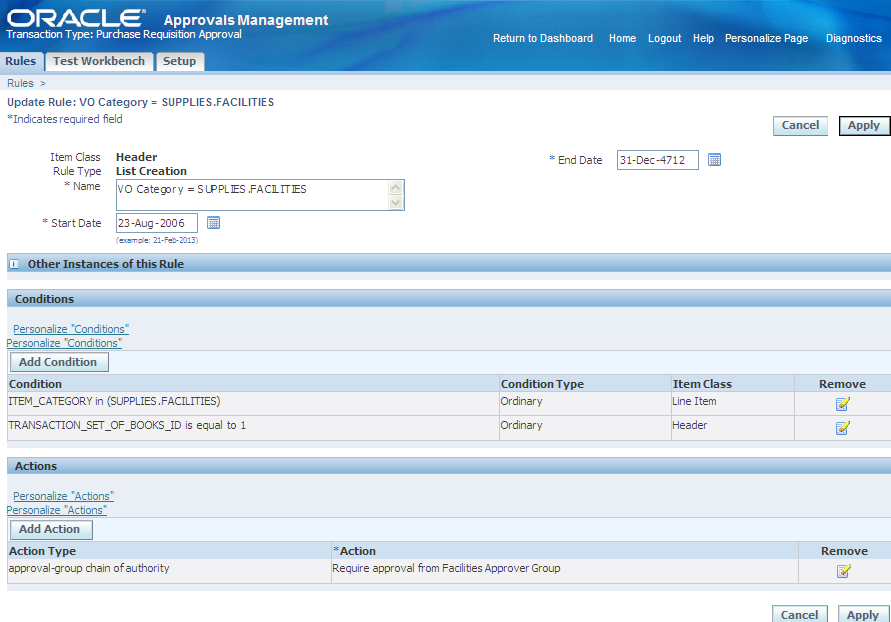
Create Rule using Parallel approval Action type and approver Groups.
Example:
-
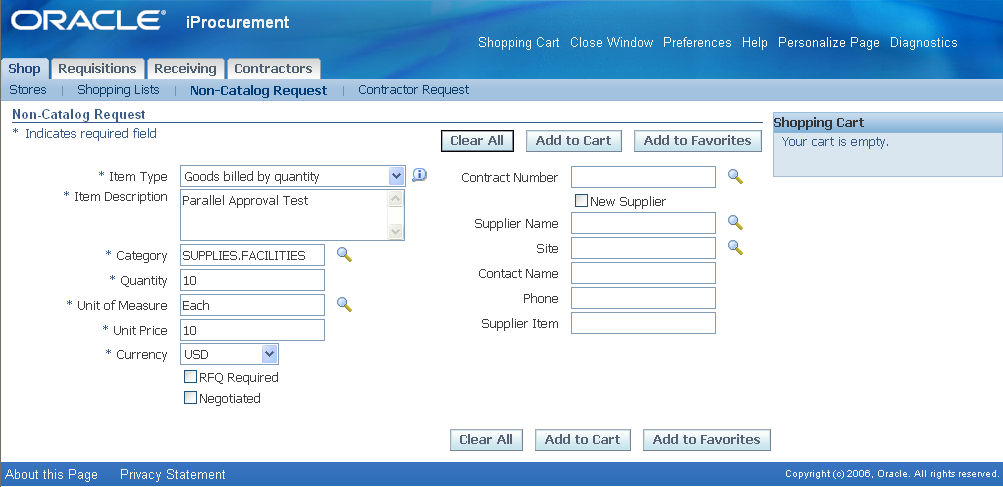
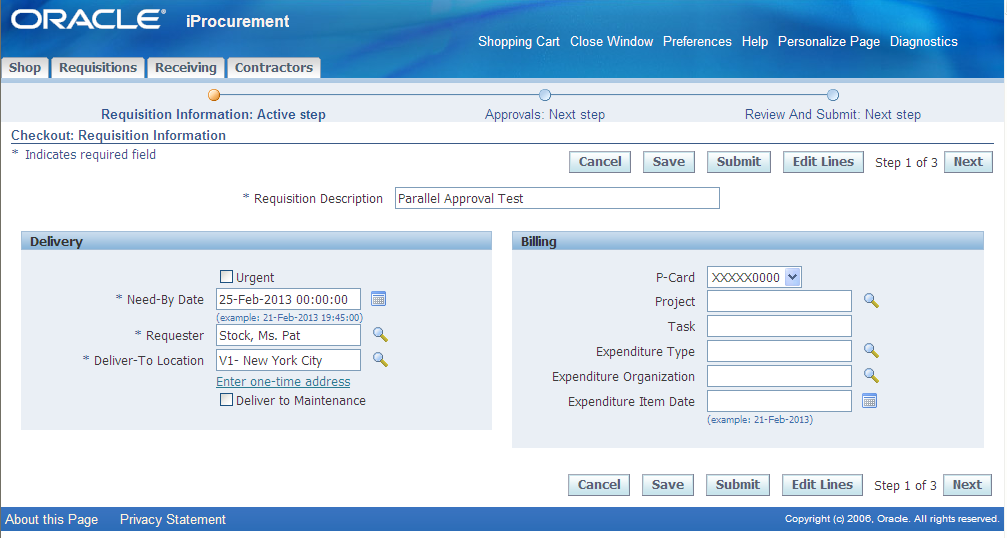
Create Non catalogue request using “SUPPLIES.FACILITIES” as category and check out

-
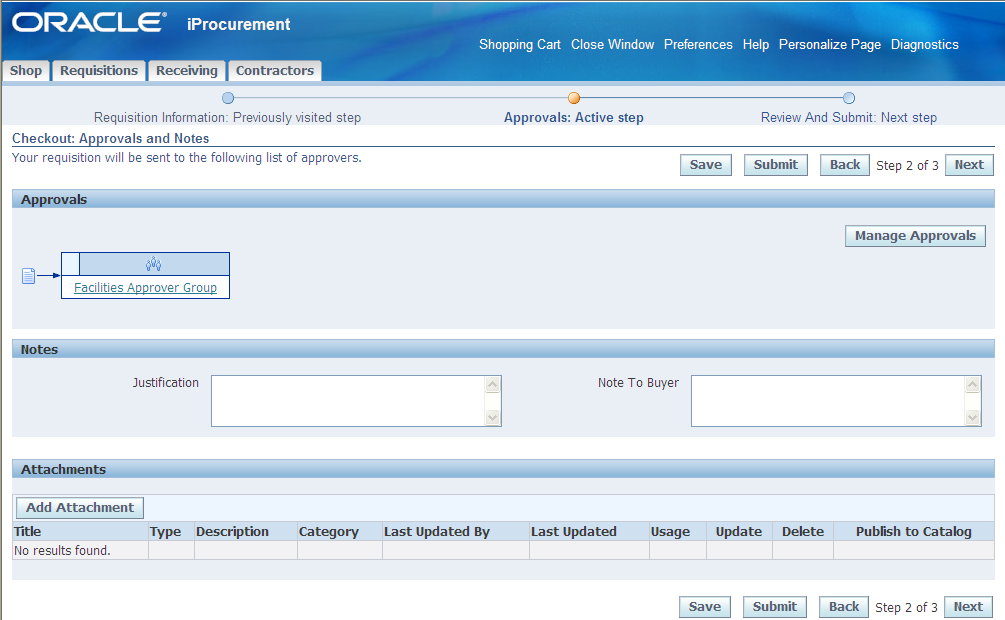
Approval and Notes section displays the approval group selected for this purchase requisition.
-
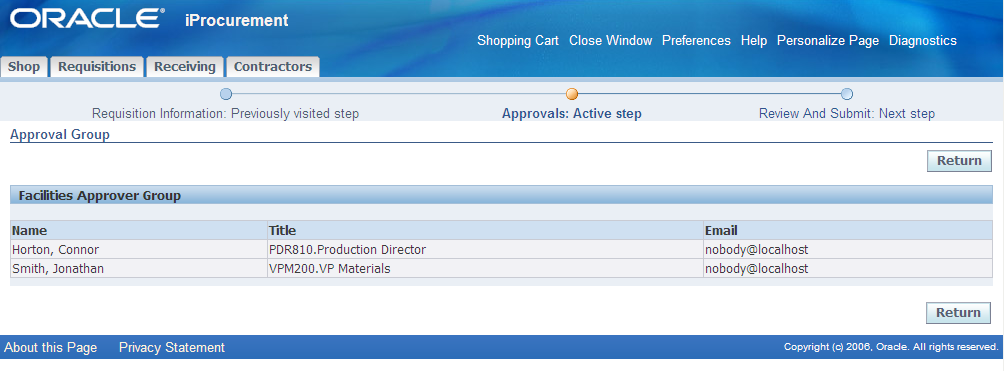
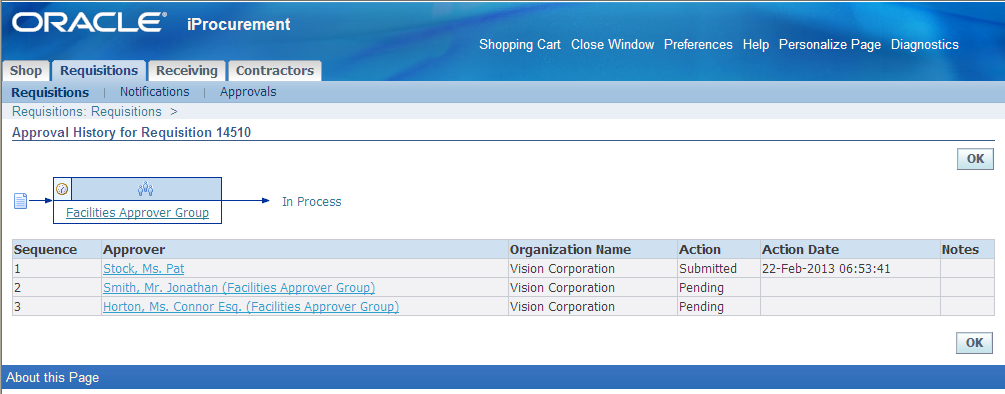
In our example “Facilities Approval Group” selected for approval.
-
This group consist 2 approvers namely Horton and Smith. Both the approvers will be notified once request submitted.
-
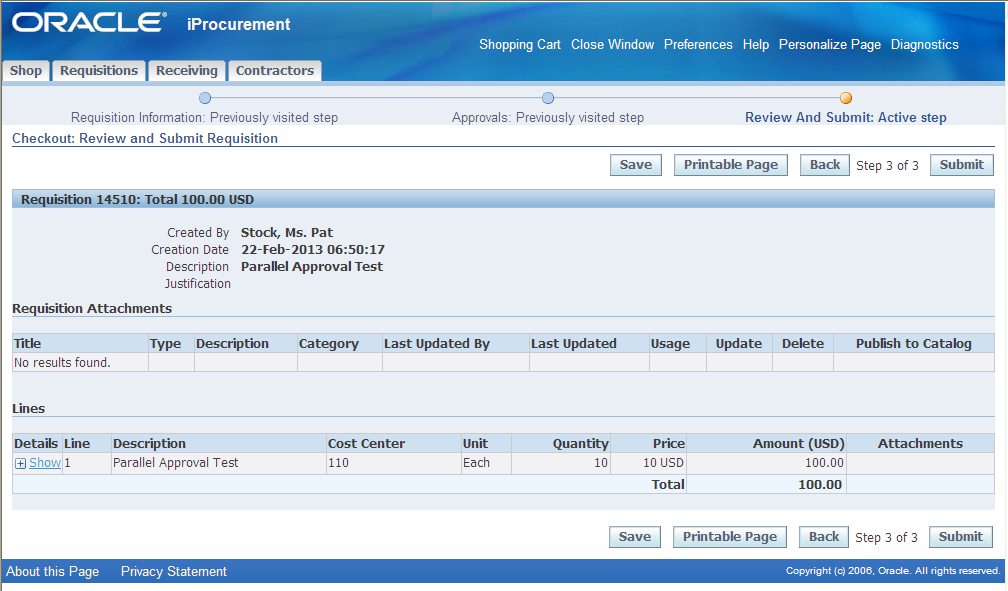
Review the PR and Submit for Approval.
-
Click on the status to know the status of the notification. Both approvers are notified for approval.
-
Login as Smith to view the Purchase Requisition approval notification.

-
Login as Horton to see the notification for the same purchase Requisition and Click “Approve” button to approve the Request.

-
Login as Requestor to check the status of the Purchase Requisition and you can see the request is approved by Horton and “no action taken” by Smith.

For Your Information (FYI) Notification support for Purchase Requisition
Recent technical advancements bring bigger organizations closely. Industries are operating with less manpower to cut down expenses to increase profit. Also, Employees are started working in multiple locations.
Due to these advancements, Requestor or Buyer may require to inform buying decision to other person who would like to have information. These persons are not in the approval hierarchy and their approval is not required for buying.
Setup required to configure “For Your Information (FYI) Notification”
-
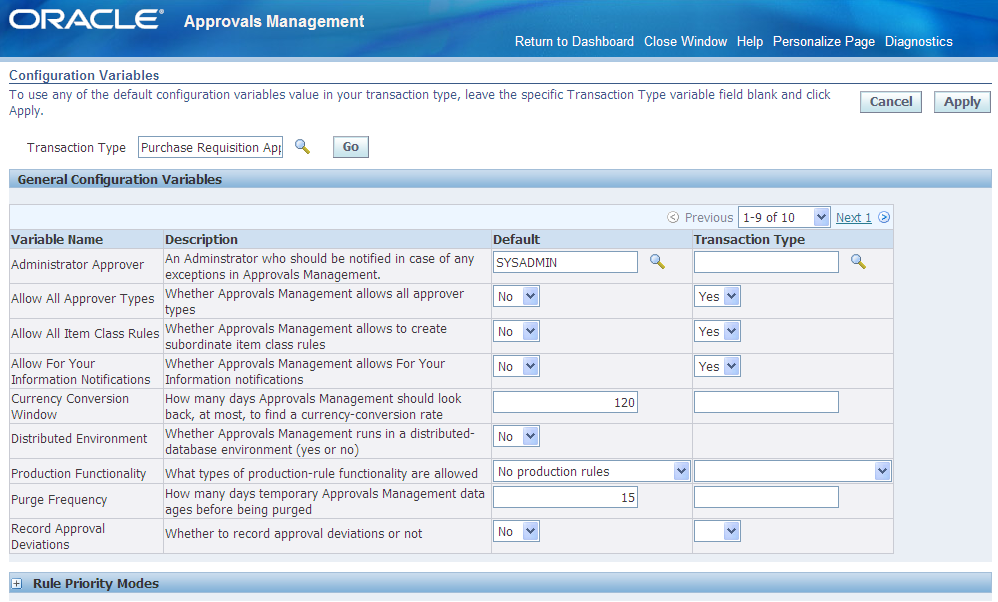
Navigate to “Approval Management Business Analyst” responsibility and click on Configuration variables.

-
Select Transaction type as “Purchase Requisition Approval” and click Go. Then Select “YES” under Transaction type for the variable name “Allow For your Information Notifications”
-
Save the Changes and you will get below confirmation message

-
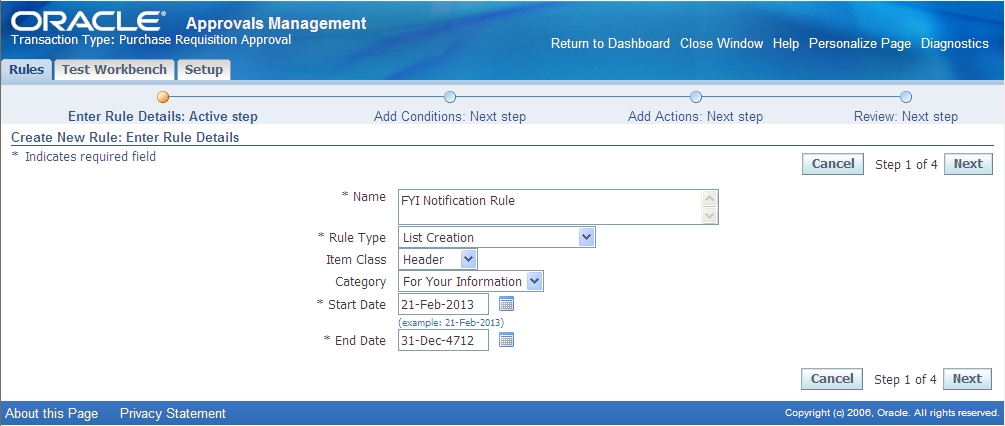
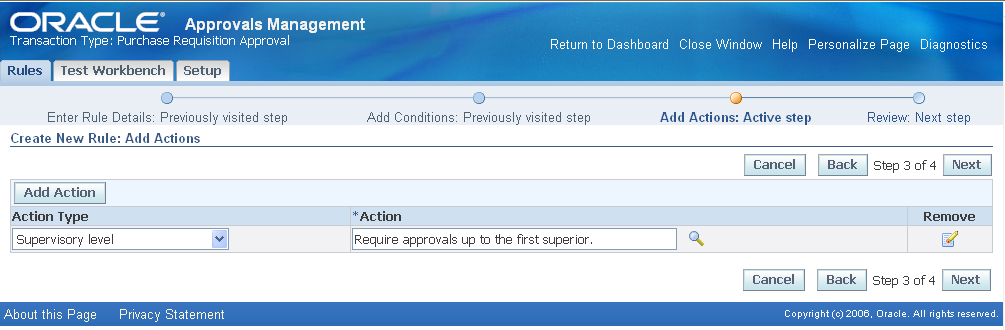
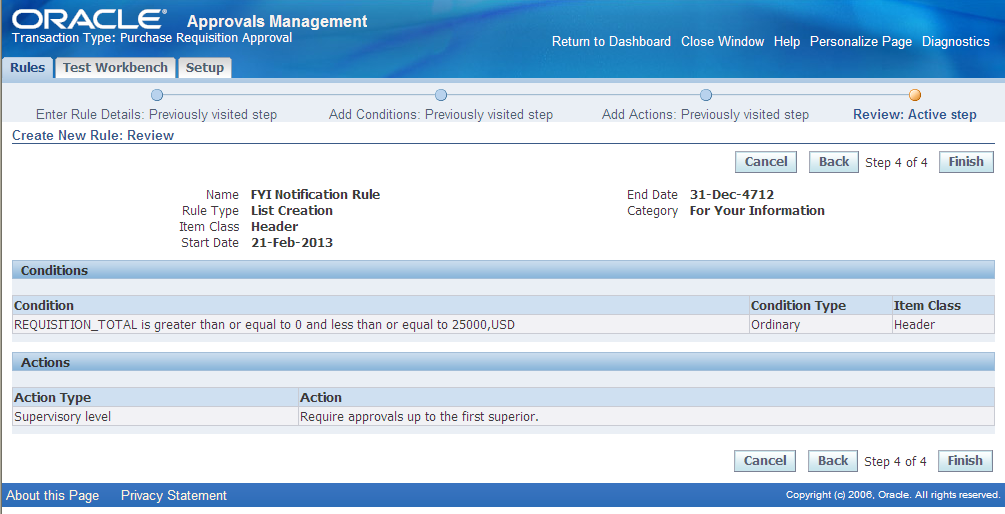
Create new rule with the category “For Your Information” or update existing rule
-
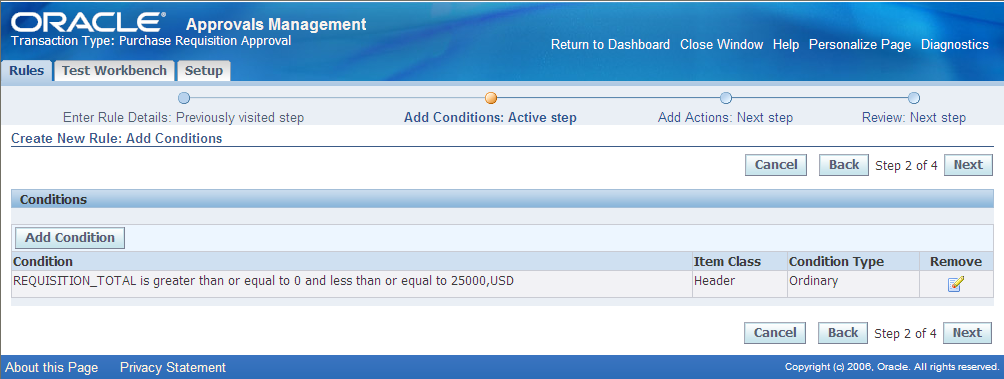
Add condition to the Rule, Action Type, and Action. Complete the rule creation.

Example
-
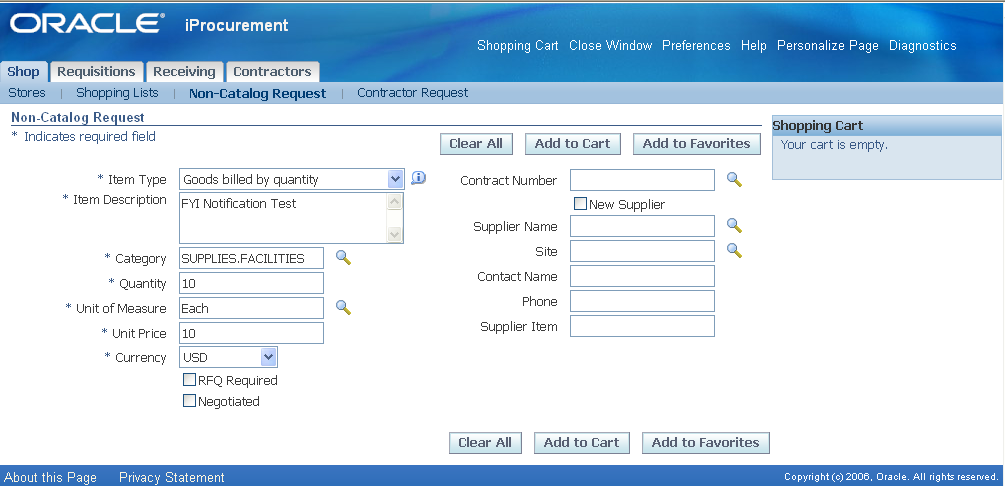
Create Non catalogue Request to test this FYI information notification.
-
Add to Cart and Checkout.


-
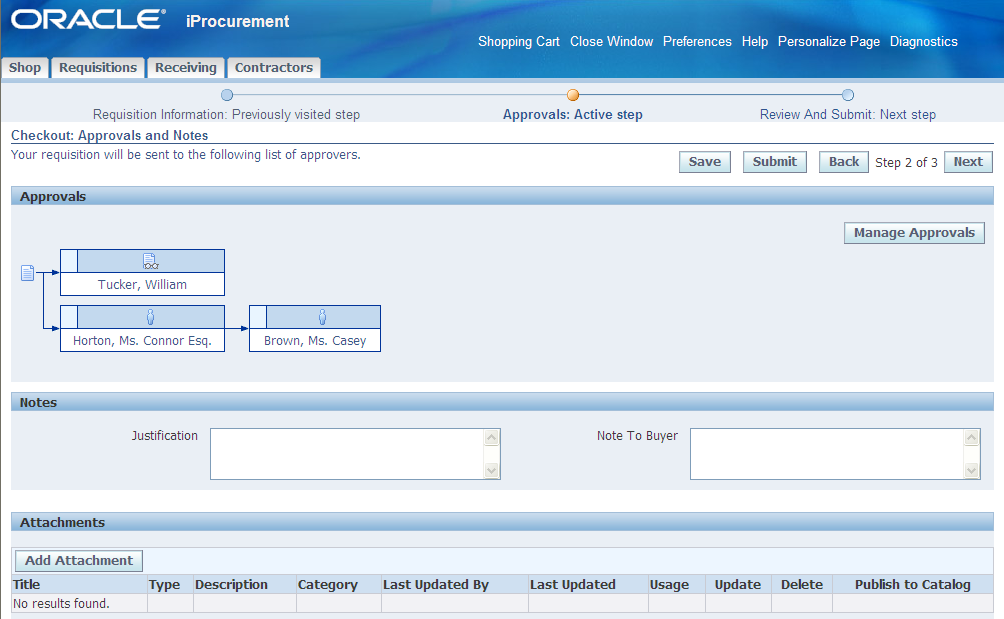
Approval and Notes page displays the Approval Sequence. Both FYI notification and Approval Authority shown in the display.

-
Review and Submit the Request.

-
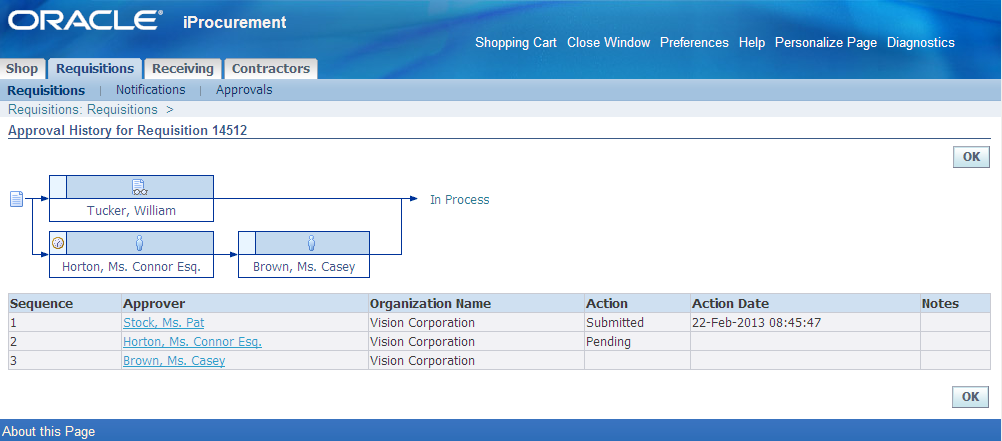
Check the Status of the Request in Approval History.
-
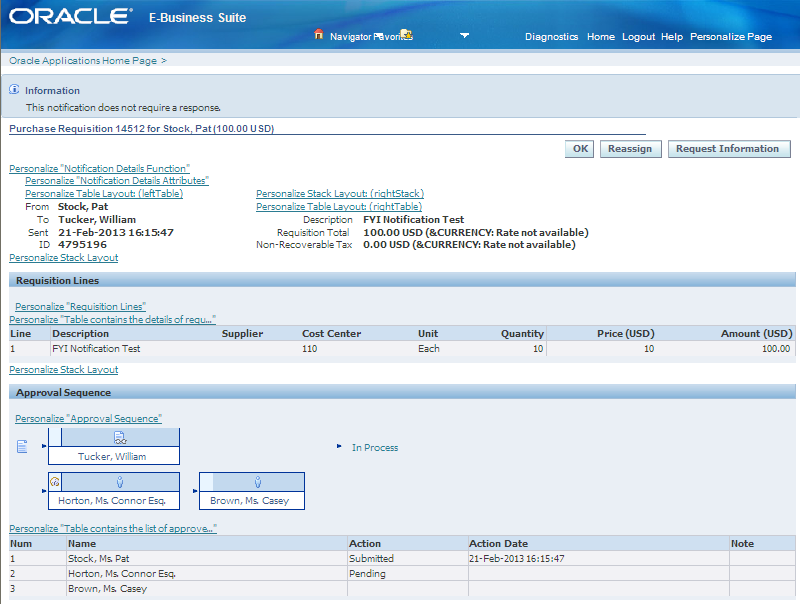
Login as FYI Notification user. User notified with FYI message.
-
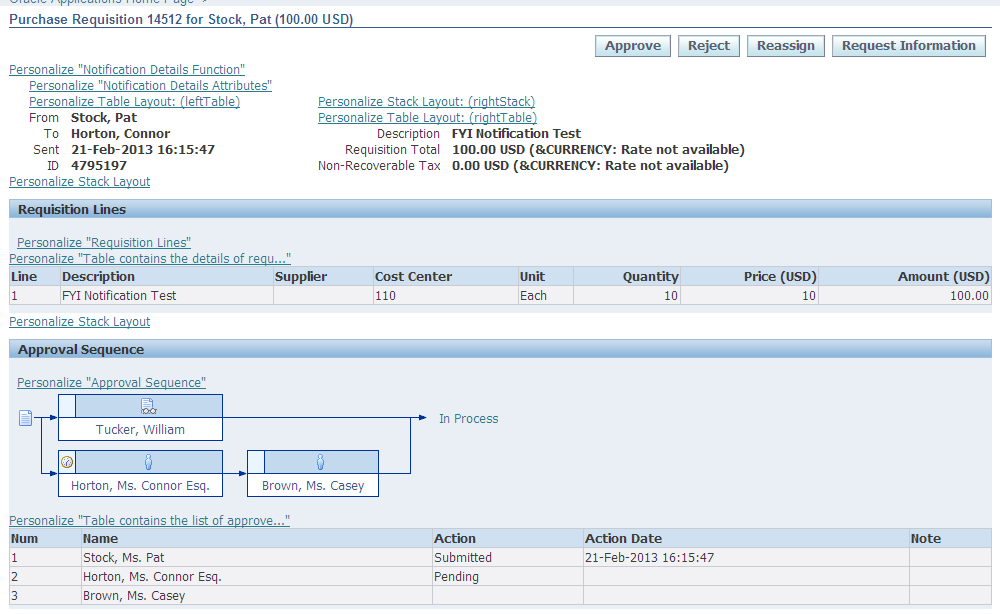
Login as Approver and Approve the Request.

-
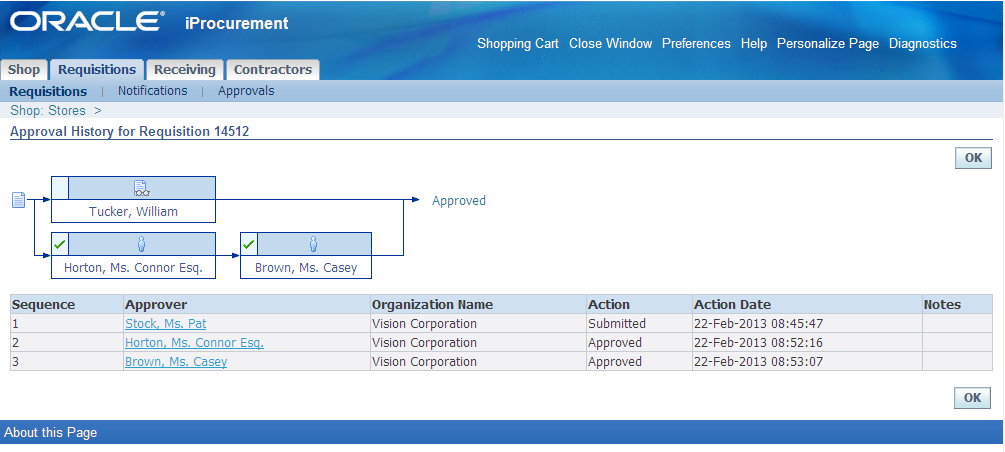
Once all Approvers are approved the PR, Check Approval History of the PR. History displays the Request approved only by approval authority and FYI user only got FYI notification.
Graphical display of Approval Chain
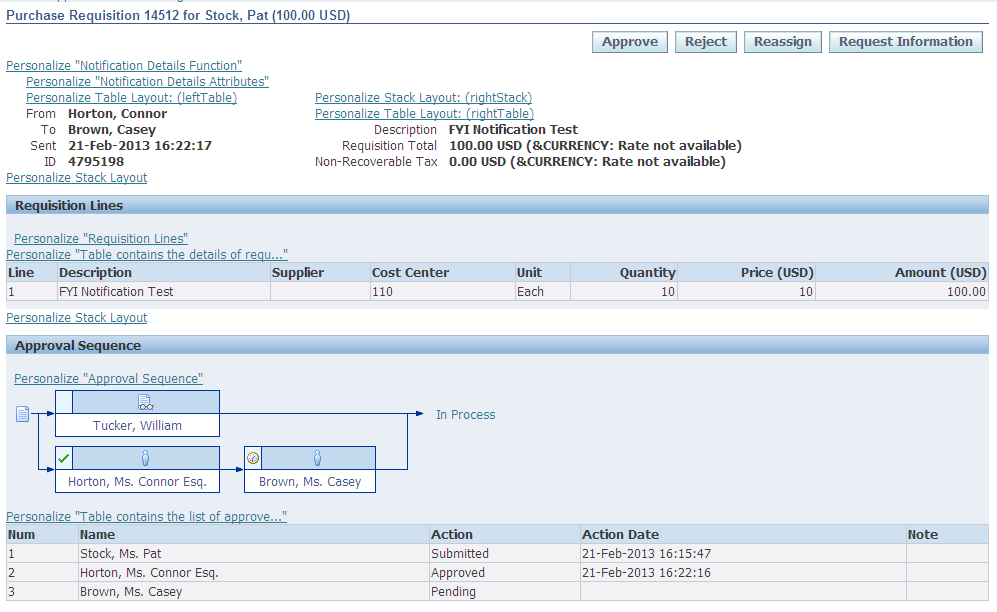
As Napoleon said “A picture is worth a thousand words”, Oracle enhanced purchase Requisition approval page (Step 2 of 3 Page) with graphical display to show PR approvers. This feature enables the user to clearly understand approval sequences without any confusion. Oracle also enhanced the Approval notification with the graphical display to show the approval sequence.
Different symbols are used to indicate to represent whether it is an Approval notification or it is a FYI notification.
Setup required for Graphical display of Approval Chain
No Specific Setup required for this functionality. This is a standard feature from R12 of Oracle EBS.
Example
-
Below example depicts approval required from one approver in a sequence.

-
Below example depicts approval required from group of approvers. Click on the Group name to view all approvers attached with this Group

-
Below example depicts approval required from Series of Approvers and “For Your Information” Notification approvers.
-
Below example depicts Graphical display of approvers in the PR Approval Notifications.
References
-
Release Content document R12 Oracle Advanced Procurement.
About the Author
Suresh Kumar Mani, a Lead functional consultant who is having 12 years 9 Month of Functional experience in Sales, Distribution and purchasing domains and having 6 Year and 4 Months of IT Experience in Oracle Apps. He has worked in SCM modules like PO, INV, OM and Manufacturing Modules like OPM & OPM Costing, BOM and WIP.
He is currently working as “Lead Functional consultant” in Rheem Manufacturing Company Project. He has worked in Morrisons Project at Onsite and provided his contribution in SCM and process manufacturing module implementations.
He is also having Sales and Distribution domain knowledge by working in manufacturing industries like “Domino Printech India Pvt. Ltd, Nilkamal Crates and Bin and Raipur Rotocast ltd.