Blog / People and Culture Blog
Validation Based on Row Value in Interactive Report
1. Overview
This document will be helpful to validate interactive report column value using dynamic action.
2. Technologies and Tools Used
The following technologies have been used to achieve this functionality,
- SQL
- Javascript
3. Use Case
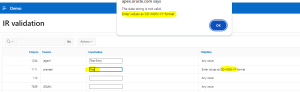
I had a situation to restrict the user input based on the “helpline” column, if the helpline value is “Enter values as DD-MON-YY format” then the user should input the only date as DD-MON-YY format, else the validation should fire. If the ‘Helpline’ column value Is “Any Value” then it should not validate it.
4. Architecture
Let us see step by step,
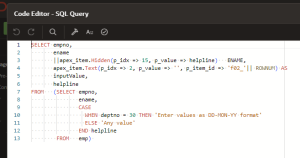
Step 1: Create an Interactive Report.
Code:
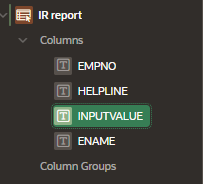
Step 2: Add a hidden column à apex_item.Hidden(p_idx => 15, p_value => helpline)
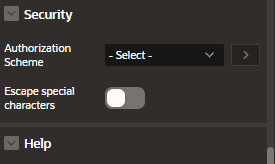
Step 3: Select “Inputvalue” column and disable Escape special characters.
Step 4: create dynamic action.
Event : Change
Selection type : jQuery selector
jQuery Selector : input[name=”f02″]
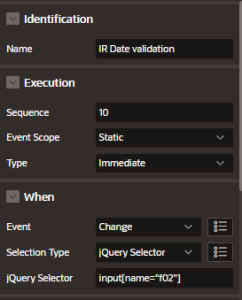
Action : Javascript Expression
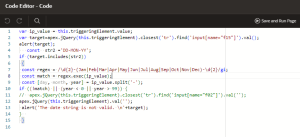
Code:
var ip_value = this.triggeringElement.value;
var target=apex.jQuery(this.triggeringElement).closest(‘tr’).find(‘input[name=”f15″]’).val();
//alert(target);
const str2 =’DD-MON-YY’;
if (target.includes(str2))
{
const regex = /\d{2}-(Jan|Feb|Mar|Apr|May|Jun|Jul|Aug|Sep|Oct|Nov|Dec)-\d{2}/gi;
const match = regex.exec(ip_value);
const [day, month, year] = ip_value.split(‘-‘);
if ((!match) || (year < 0 || year > 99)) {
// apex.jQuery(this.triggeringElement).closest(‘tr’).find(‘input[name=”f02″]’).val(”);
apex.jQuery(this.triggeringElement).val(”);
alert(‘The date string is not valid. \n’+target);
} }
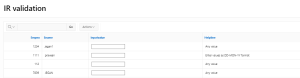
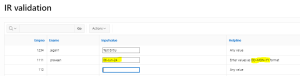
5. Screen Shot