Simple File Browser Item To Drag and Drop Look and Feel In Oracle Apex
This document is about to change a style of simple file browse item to Drag and Drop look and feel.
Technologies Used:
- Oracle Apex
- Javascript
- CSS
Use Case:
By default, the file browse is shown as a text field with a browse button. But it can be modified to different look and feel. Let us have the requirement on how to change a style of simple file browse item to Drag and Drop look and feel.
1. Steps with Screenshot
Solution:
You could achieve this by adding minimal CSS and JavaScript in Oracle APEX . Let us see the step by step process to achieve this,
Step 1 : Create a region in the name File Browse and select region type as Static Content.
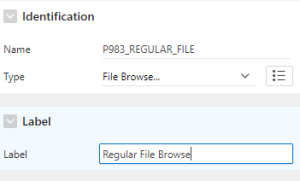
Step 2: Then, create an item File Browse and name it as Regular File Browse,
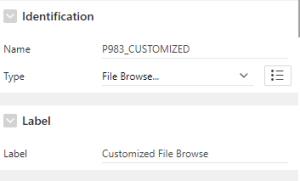
Step 3: Then, create one more item File Browse and name it as Customized File Browse,
Step 4: In the Page header ==> JavaScript, type in the below code in the Execute when Page Loads section as displayed in the screen shot,
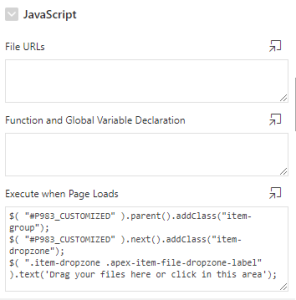
//replace P983_CUSTOMIZED with your page item
$( “#P983_CUSTOMIZED” ).parent().addClass(“item-group”);
$( “#P983_CUSTOMIZED” ).next().addClass(“item-dropzone”);
$( “.item-dropzone .apex-item-file-dropzone-label” ).text(‘Drag your files here or click in this area’);
Step 5: Navigate to CSS section and type in the below code in the Inline attribute as shown in the below screen shot,
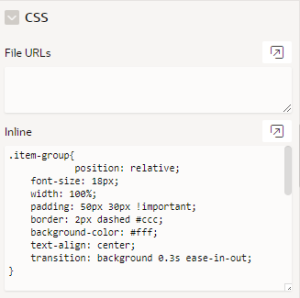
.item-group{
position: relative;
font-size: 18px;
width: 100%;
padding: 50px 30px !important;
border: 2px dashed #ccc;
background-color: #fff;
text-align: center;
transition: background 0.3s ease-in-out;
}
//replace P983_CUSTOMIZED with your page item
#P983_CUSTOMIZED {
position: absolute;
height: 100%;
top: 0;
left: 0;
right: 0;
bottom: 0;
opacity: 0;
cursor: pointer;
}
.item-dropzone {
position: inherit !important;
}
.item-dropzone .apex-item-file-dropzone-label{
border-style:hidden !important;
}
.item-dropzone .apex-item-file-dropzone-icon {
display:none;
}
Step 6: Finally, Save and Run the page.
Output:
Below screen shot shows the difference in the style of the Regular File Browse and Customized File Browse.
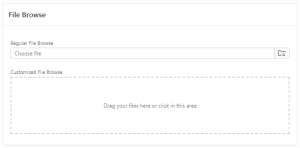
Note: Tested on APEX 18, 19 Versions
Inbuilt : From APEX 20 Versions