
Reports with Row Details
Introduction
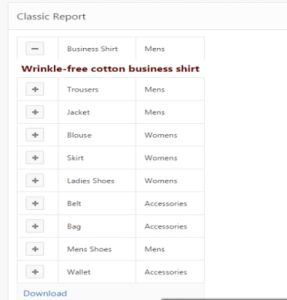
This document describes how to show an Apex Reports with Row Details.
In Apex, Report is an essential tool which is in classical, interactive & other formats. Suppose if we have many columns in a report, then we want to display only essential columns on a report, but with a button option in report brings other columns in a collapsible format from the same report itself.
Here we are going to achieve this functionality using Jquery and
On Demand Application Processes.
Benefits
- We can restrict the user to display specific columns in the report but will
show other columns in a collapsible way.
- Look and feel of a report will be improved.
Steps to Follow:
Step 1:
Create a new page
Step 2:
Create a region ->report -> Classic report ->Name for the
Report ->SQL query.
SELECT p.product_id, p.product_name, p.CATEGORY, p.product_avail,
(SELECT apex_lang.lang (‘Details’)
FROM DUAL) AS details
FROM demo_product_info p
Step 3:
Edit DETAILS column attributes and make column as link
Link Text : #DETAILS#
Link Attributes : class=”product-details”
Data-product=”#PRODUCT_ID#”
Target : URL
URL : #
Step 4:
Add to page JavaScript File URLs
#IMAGE_PREFIX#libraries/jquery-ui/1.10.4/ui/minified/jquery.ui.button.min.js
Step 5:
Add below code to Function and Global Variable Declaration
var gDetailCache = new Object();
(function($){
$.fn.htmldbDetailRow=function(options){
options=$.extend({},{
“trIdPrefix”:”D”,
“btnShowClass”:”ui-icon-plusthick”,
“btnHideClass”:”ui-icon-minusthick”,
“btnAjaxClass”:”ui-icon-refresh”
},options);
this.each(function(){
var $Self = $(this).removeAttr(“href”).button({icons:{primary:options.btnShowClass},text:false}),
$Row = $Self.closest(“tr”),
$Ico = $Self.children(“span.ui-button-icon-primary”),
lC = $Row.children(“td”).length,
lId = $Self.data(options.btnData),
lTrId = options.trIdPrefix+lId,
lClass = options.btnShowClass + ” ” + options.btnHideClass
;
$Self.click(function(){
$Tr=$($x(lTrId));
if($Tr.length===0){
$Self.button(“option”,{icons:{primary:options.btnAjaxClass},”disabled”:true});
apex.server.process(options.onDemanProcess,
{x01:lId},{dataType:”text”,success:function(d){
var $Tr=$(
‘<tr id=”‘ + lTrId + ‘”>’ +
‘<td class=”‘ + options.tdClass + ‘” colspan=”‘ + lC + ‘”>’
+ d +
‘</td>’ +
‘</tr>’
),lA=new Object();
lA[lTrId]={d:$Tr,s:true};
$.extend(gDetailCache,lA);
$Row.after($Tr);
$Ico=$Self.button(“option”,{icons:{primary:options.btnHideClass},”disabled”:false})
.children(“span.ui-button-icon-primary”);
}
});
}else{
$Tr.toggle(0,function(){
$Ico.toggleClass(lClass);
gDetailCache[lTrId].s=!gDetailCache[lTrId].s
})
}
});
if(lTrId in gDetailCache){
gDetailCache[lTrId].d.children().attr({“colspan”:lC});
$Row.after(gDetailCache[lTrId].d);
if(gDetailCache[lTrId].s){
$Ico.toggleClass(lClass)
}else{
gDetailCache[lTrId].d.hide()
}
}
})
return this
}
})(apex.jQuery);
Step 6:
Add below code to the page CSS Inline
.prodinfo{
padding:6px!important;
font-size:12pt!important;
color:#660000!important;
font-weight:bold!important;
text-align:center!important;
}
Step 7:
Create a on demand process GET_PRODUCT_INFO
DECLARE
l_info VARCHAR2(32000);
BEGIN
SELECT product_description
INTO l_info
FROM demo_product_info
WHERE product_id = apex_application.g_x01;
HTP.PRN(l_info);
EXCEPTION
WHEN NO_DATA_FOUND THEN
HTP.PRN(‘No additional information’);
WHEN OTHERS THEN
HTP.PRN(sqlerrm);
END;
Step 8:
Create dynamic action
Name: IR detail row
Event: After Refresh
Selection Type: Region
Region: {select IR region}
Condition: -No Condition-
Action: Execute JavaScript code
Fire On Page Load: True
Code:
$(this.triggeringElement)
.find(‘a.product-details’)
.htmldbDetailRow({
onDemanProcess:”GET_PRODUCT_INFO”, // on demand process name
tdClass:”prodinfo”, // details class
btnData:”product” // button data name
});
Selection Type: None
Call To Action:
For Oracle apex development and customization please do contact our company website https://doyensys.com/
Conclusion
Thus a user can able to see the detail rows in a collapsible format from an report itself.