Blog / People and Culture Blog
Enable/Disable IR Download button based on User Role

Overview
By default, the IR region allows to either enable the Download button to all users or disable the Download button to all users. Suppose if there is a requirement to enable/disable the download button based on user role, then we need to go for customization.
Architecture
Let’s see how to achieve from the following steps,
Step 1: Create an Authorization scheme to validate the user role returning Boolean type,
Shared Components → Security → Authorization Schemes → Create
Name : GET_USER_ROLE
Type: PL/SQL Function Returning Boolean.
Code:
CREATE OR REPLACE FUNCTION has_roles (prole IN VARCHAR2)
RETURN BOOLEAN
IS
role_details ROLES%ROWTYPE;
BEGIN
SELECT *
INTO role_details
FROM ROLES
WHERE ROLE = prole;
IF role_details.ROLE = ‘ADMIN’
THEN
RETURN TRUE;
ELSE
RETURN FALSE;
END IF;
END;
Step 2 : Assign a Static ID to interactive report,
Step 3 : Create a Dynamic action,
Event :- Click
Selection Type :- jQuery Selector
jQuery Selector :- #STATIC_REPORT_ID_actions_button
Security → Authorization Scheme :- GET_USER_ROLE
Action :- Execute Javascript Code
Code :-
setTimeout(function(){
$( “.icon-irr-download” ).parent().parent().parent().parent().prev().remove();
$( “.icon-irr-download” ).parent().parent().parent().parent().remove();
}, 100);
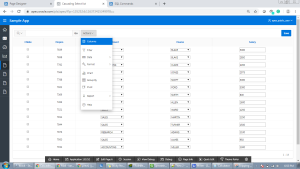
Step 4 : Screen looks like below image when Admin user logs into the application,
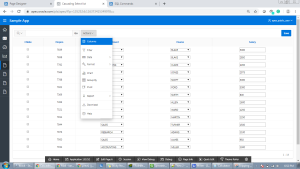
Steps 5 : Screen looks like below image when Support user logs into the application,