Blog / People and Culture Blog
Automation Testing In Oracle Apex Using Selenium Web Driver
This document explains about how to perform unit testing using selenium web driver in Oracle Apex. Selenium Web Driver is a web framework that permits you to execute cross-browser tests. This tool is used for automating web-based application testing to verify that it performs expectedly. Selenium Web Driver allows you to choose a programming language to create test scripts.
2. Technologies and Tools Used
The following technology has been used to perform unit testing using Selenium web driver in Oracle Apex,
- Oracle APEX
- Selenium Web Driver
- Eclipse-IDE
- Java
- To Test old build functionality along with the module integration.
- To save time and human errors.
- To increase efficiency.
4. Steps with Screenshot
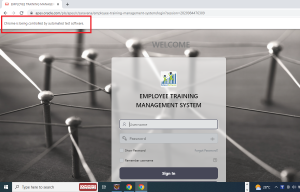
Step 1: To perform unit testing in login page,import required library files for creating an object.
Code:
import org.openqa.selenium.WebDriver;
import org.openqa.selenium.chrome.ChromeDriver;
import org.openqa.selenium.WebElement;
import org.openqa.selenium.support.ui.Select;
import java.awt.AWTException;
import org.openqa.selenium.Alert;
Step 2: Then create a class in the name of “Rucapexut” and configure the path for accessing the standalone web driver interfaces.
Code:
public class Rucapexut {
public static void main(String[] args) throws InterruptedException,AWTException {
String k=”webdriver.chrome.driver”;
String v=”H:\\selenium\\chromedriver_win32\\ChromeDriver.exe”;
System.setProperty(k,v);
}};
Step 3: To control the browser behavior,we need to create object for that respective browser class(package)
Code:
WebDriver driver=new ChromeDriver();
/*get is a inbuilt method which accept url as a argument to pass through the anchored web page*/
driver.get(“https://apex.oracle.com/pls/apex/r/sravan/employee-training-management-system”);
Step 4: To find the element in the web page use find elements method and to provide user input, we can call sendkeys() function.
Code:
/*To find the web element user name(text input) following locator(ID) is used*/
WebElement ref=driver.findElement(By.id(“P9999_USERNAME”));
/*To populate username text input “sendKeys” keyword is used*/
ref.sendKeys(“s****************@gmail.com”);
/*To find the web element user name(text input) following locator(ID) is used*/
WebElement ref1=driver.findElement(By.id(“P9999_PASSWORD”));
ref1.sendKeys(“*******”);
Step 5: Synchronization issue can be avoided by using implicit wait and providing waiting time in milliseconds
Code:
/*Implicit wait is provided to avoid synchronization issue between browser and web driver*/
Thread.sleep(5000);
Step 6: Then maximize the tab window using method chaining and find the button element to trigger click event.
Code:
/*The following method chaining are used to control the browser tab resolution*/
driver.manage().window().maximize();
/*To find the web element (button) following locator(ID) is used*/
WebElement ref2=driver.findElement(By.id(“B34426216246260183867”));
/*To trigger the button event “click()” method is used*/
ref2.click();
Step 7: Navigation tree can be accessed by using xpath locators (i.e) either relative or absolute xpath.
Code:
/* To click on navigation hamburger icon, xpath locator is used*/
WebElement ref3=driver.findElement(By.xpath(“//button[@id=’t_Button_navControl’]”));
ref3.click();
Thread.sleep(5000);
Step 8: Relative xpath locator is used to find the tree of that navigation parent entry and to click on the feedback form page anchor link.
/* To click on navigation toggle icon, xpath locator is used*/
WebElement ref4=driver.findElement(By.xpath(“//span[@class=’a-TreeView-toggle’]”));
ref4.click();
Thread.sleep(5000);
/* To click on feedback form hyper link, xpath locator is used*/
WebElement ref5=driver.findElement(By.xpath(“//*[text()=’Feedback form’]”));
ref5.click();
Thread.sleep(5000);
Step 9:Import alert package and create an object using upcasting and access the methods in it.
Code:
/*To import alert package in to the user defined package*/
Alert alert = driver.switchTo().alert();
alert.accept();
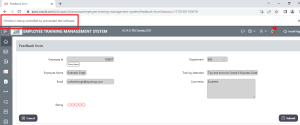
Step 10: Form input field can be populated by using help text link.
Code:
/*To populate employee id using tiny help text button’s xpath*/
WebElement ref6=driver.findElement(By.xpath(“//a[@class=’t-Button t-Button–simple t-Button–hot t-Button–tiny’]”));
ref6.click ();
Step 11:.Drop down can be handled by creating object for Select method.
Code:
/*To create object and selecting the required option*/
Select drpdown1=new Select(driver.findElement(By.name(“P13_DEPARTMENT”)));
drpdown1.selectByVisibleText(“EBS”);
Thread.sleep(5000);
Step 12: Cascaded list of values can be tested based on positive and negative inputs.Options can be accessed by using five different methods
- selectByIndex
- selectByVisibleText
- selectByValue
- deselectByValue
- deselectByVisibleText
Code:
/*To create object and selecting the required option based on cascaded select list*/
Select drpdown2=new Select(driver.findElement(By.id(“P13_EMPLOYEE_NAME”)));
drpdown2.selectByIndex(1);
Thread.sleep(5000);
Select drpdown3=new Select(driver.findElement(By.id(“P13_TRAINING_ATTENDED”)));
drpdown3.selectByIndex(1);
Step 13:Text area web element is handled by using relative xpath(immediate descendent).
Code:
WebElement ref7=driver.findElement(By.xpath(“//input[@name=’P13_EMAIL’]”));
ref7.sendKeys(“ruthreshsingh@staging.doyensys.com”);
Thread.sleep(5000);
WebElement ref8=driver.findElement(By.xpath(“//textarea[@name=’P13_COMMENTS’]”));
ref8.sendKeys(“Excellent”);
Thread.sleep(5000);
WebElement ref10=driver.findElement(By.id(“B33780369728611853219”));
ref10.click();
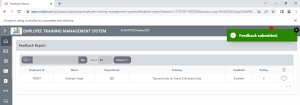
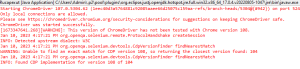
Output: